


Volume Control Home
4.4524.00 Reviews
App Specs
- Version
- 1.6.4
- Updated On
- License
- Free
- Downloads
- 500,000+
- Developer
- Utility Apps Home
- Categories
- Music & Audio
- Platform
- Android
Screenshots
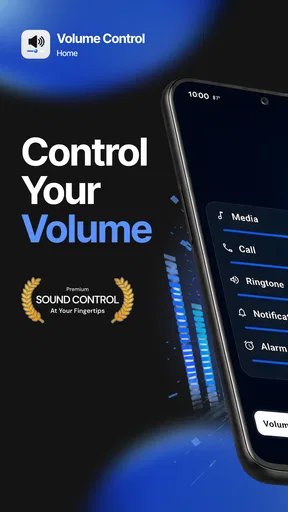
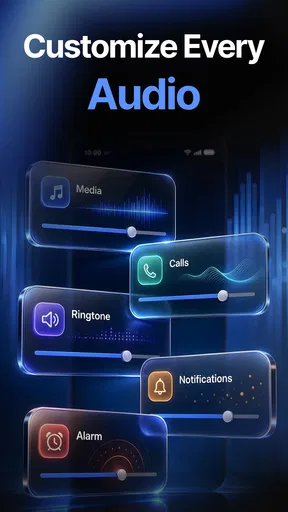
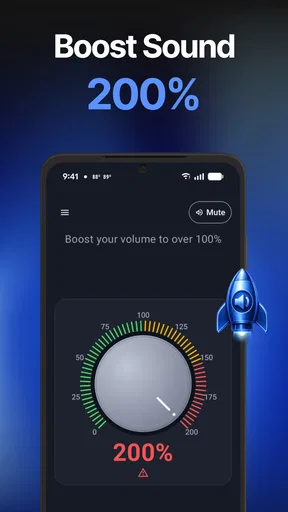

 Analysis by AppCompare
I spent time with Volume Control Home as a practical Music & Audio tool rather than as a full sound-enhancement suite. Its main appeal is straightforward: it puts sound controls close at hand and is designed to push media volume beyond the normal 100% ceiling. That makes it interesting for people who regularly find that a podcast, video, or song is simply too quiet, especially when the phone is connected to a speaker or another listening device.
The app is made by Utility Apps Home, is free to use, and is rated for Everyone. It has reached over 100K installs, with a 4.5 average from roughly 1K ratings and more than 100 written reviews. Those figures suggest that the basic idea is landing well with a broad group of Android users, although I would still treat any volume booster carefully: louder is not automatically clearer, and the result depends heavily on the phone, headphones, speaker, and media source involved.
How the volume controls fit into everyday listening
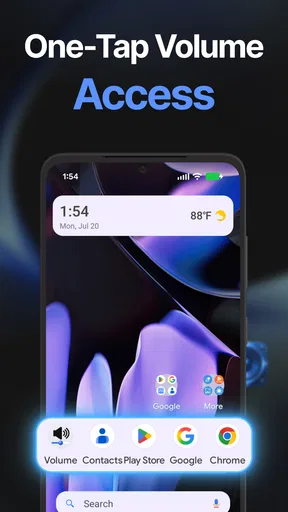
The most useful part of the experience is the emphasis on access. Instead of repeatedly opening system settings or searching through a media app, the app is built around controlling sound from the home screen. That matters when I am moving between music, video, navigation prompts, and voice messages. A control that is easy to reach is more valuable than a powerful adjustment hidden behind several menus.
In a normal evening scenario, I might start a video at home, lower the sound when someone speaks, and then raise it again when the room becomes noisy. Volume Control Home is aimed at making those changes less awkward. It is especially appealing if the physical buttons are inconvenient, if the phone is resting across the room, or if I want a more direct way to manage media volume without leaving the current task for long.
The promise of going beyond the standard maximum is more situational than it first sounds. On a quiet phone speaker, extra output may make dialogue easier to follow. On inexpensive earbuds, it may compensate for a weak listening level. But the boost can also expose distortion, harsh treble, or the limits of the hardware. I would increase the level gradually rather than jumping straight to the highest setting, particularly with in-ear headphones.
Where connectivity matters most
Connectivity shapes this app indirectly but importantly. The controls may be most useful when the phone is connected to Bluetooth headphones, a portable speaker, a car audio system, or another external playback setup. In those situations, the phone is not the whole sound system; it is the place where I manage the signal and the listening level. A small change in the phone’s volume behavior can therefore affect the comfort of the entire setup.
At the same time, the app should not be viewed as a replacement for a stable connection. If Bluetooth audio is cutting out, a speaker is disconnecting, or a car system is switching sources, increasing volume will not solve the real problem. I found it more helpful to separate those issues: first make sure the intended device is connected and playing, then use the volume control to fine-tune the result.
Worth Reading Before You Choose

Flipboard Shows What News Apps Must Do Beyond the Feed

Switching to Android Auto Means Rethinking Your Driving Routine

Google Calendar Makes a Crowded Week Easier to Manage

Ludo King Makes the Most of the Minutes Between Plans

Baby Panda World Brings Quick Play to Modern Phones, but Its Game Library Feels Busy

ESPN’s Live Game View Makes Following Close Games Easier
This distinction is easy to miss. A quiet stream, a paused player, and a disconnected speaker can all feel like “low volume” at first. The app can help with the control side, but it cannot turn a broken connection into a working one. That is why I see it as a convenient layer over the phone’s audio controls, not as a universal fix for every sound problem.
Using it while moving between mobile situations
The home-screen focus makes the most sense on a phone that changes roles throughout the day. I can imagine using it during a commute, switching from earbuds to a car connection, and later returning to the handset speaker. Each setup has a different comfortable range, so quick access is more useful than a single permanent setting.
There is also a safety angle to mobile use. When I am walking or traveling, I do not want to spend time navigating deep settings while carrying the phone. A visible control can reduce that friction, but it also makes accidental changes more possible. If the phone is in a pocket or bag, a control that is too easy to trigger could lead to an unexpectedly loud start when playback resumes.
For that reason, I would test the app at home before relying on it during a commute. I would connect the headphones or speaker I actually use, play familiar content, and find a comfortable range before leaving. This is one of the more practical ways to avoid confusing “more volume” with “better listening.” It also gives me a chance to notice whether the connected device responds as expected.
People who use several audio accessories may appreciate the convenience most. Someone who listens only through the built-in speaker and rarely changes levels may see less benefit. The app’s value grows with the number of small volume adjustments I make during the day, not simply with the number of songs or videos I play.
What happens when something goes wrong
My biggest reservation is that volume boosting always introduces another point of uncertainty. If audio becomes distorted, I need to work out whether the issue comes from the source, the phone, the connected accessory, or the extra amplification. That makes troubleshooting less immediate than with the ordinary system slider.
A sensible recovery routine is to return to a moderate level, stop playback, and check the connection before increasing anything again. If the sound is still poor, I would compare the same media through the regular system controls. That comparison helps identify whether the app is improving loudness or simply making an existing weakness more obvious.
Bluetooth devices deserve special attention here. Different headphones and speakers can react differently to the same phone setting, and a car stereo may have its own volume limit or processing. If the sound suddenly becomes too loud after reconnecting, I would lower the phone and accessory levels separately instead of assuming one slider controls everything. This two-stage approach is slower at first but safer in regular use.
The same caution applies when moving from a speaker to headphones. A level that feels acceptable across a room can be uncomfortable directly in the ears. I would not leave an amplified setting unattended and then connect a more sensitive accessory. Checking the level after every major change in listening hardware is a small habit that prevents a surprisingly unpleasant surprise.
Keeping the experience sensible for data-conscious users
Volume Control Home is primarily about managing sound, not supplying music, podcasts, or video. That means the network demands of the overall experience usually come from the service I am using for playback. Streaming a show or song can consume data independently of the volume tool, while changing the level itself is a different task.
This separation is useful when planning mobile use. If I am trying to reduce cellular consumption, I would adjust download or streaming quality in the relevant media service rather than expect a volume controller to affect it. I would also avoid treating a louder setting as a substitute for better source quality. A compressed or poorly recorded track will not become more detailed simply because it is amplified.
For a data-conscious routine, I would prepare the listening content through the service that provides it, then use the volume controls only as needed. This keeps the responsibilities clear: the media app handles playback and network use, while Volume Control Home handles convenient sound adjustment. That workflow is less confusing than looking for one app to solve streaming, connection, and loudness at the same time.
Connectivity can still change the practical result. A strong connection may make a stream sound consistent, while interruptions can make me raise the volume during a quiet moment and then regret it when playback catches up. I would wait for playback to stabilize before making a large adjustment. This is a small but valuable habit for anyone listening over mobile data or an unreliable wireless connection.
How it compares with ordinary Android controls
The usual Android volume buttons remain the simplest option for quick changes. They are familiar, work without adding another control layer, and are usually enough for people who only need normal media levels. The built-in controls are also the better starting point when I am diagnosing a problem, because they give me a clear baseline.
Volume Control Home becomes more compelling when convenience and extra loudness matter together. Its home-screen approach can reduce the number of steps involved, while the boost is aimed at situations where the standard ceiling feels restrictive. Compared with a full equalizer, however, it is a narrower tool. An equalizer may be preferable when the real issue is muddy speech, excessive bass, or an uneven sound profile rather than insufficient loudness.
Dedicated audio hardware is another alternative. A better speaker, headphones with stronger output, or a properly configured car system can improve clarity and headroom more naturally than software amplification. Those options cost more or require replacing equipment, so the app is attractive as a low-cost experiment. Still, I would not expect it to overcome a physically weak speaker or transform basic earbuds into high-end audio gear.
The current release is version 1.5.12 and requires Android 9 or later. That makes it relevant to a wide range of relatively modern Android phones, while users on older software will need to check compatibility before planning around it. I also appreciate that its Everyone rating matches the straightforward nature of the tool, although responsible volume habits matter regardless of the age label.
Who should use it, and who should skip it
I would recommend trying it if you often watch videos in noisy places, struggle to hear speech through a particular setup, or want a home-screen route to sound controls. It is also a reasonable choice for people who move between several playback devices and dislike opening system menus every time the listening environment changes.
I would be more cautious if you already have clear, comfortable audio at ordinary levels. In that case, the extra boost may add little while increasing the chance of distortion or overly loud playback. Users who need detailed tone shaping, multiband adjustment, or professional audio control should look toward a dedicated equalizer or the settings built into their playback equipment instead.
It is not the right answer for a faulty Bluetooth connection, a damaged speaker, a silent media app, or a network stream that keeps stopping. Those problems need to be addressed at their source. The app is best understood as a convenient volume-focused companion, not as a repair tool for every failure between a phone and a speaker.
My connectivity verdict
After using it as part of ordinary mobile listening, I see Volume Control Home as a focused utility with a clear practical niche. Its strongest idea is not merely making sound louder; it is putting volume management closer to the moment when I need it, including moments involving connected audio equipment. That convenience can make a real difference during commuting, casual viewing, and quick changes between speakers and headphones.
The trade-off is that amplification needs judgment. I would begin with the normal system level, raise the sound in small steps, and check the result whenever the connected device changes. I would also remember that network quality, media quality, and Bluetooth stability are separate from volume control. Keeping those factors separate makes the app easier to use and makes troubleshooting much less frustrating.
For a free Music & Audio app from Utility Apps Home, it offers a useful answer to a specific annoyance: the standard maximum is not always enough, and the normal controls are not always convenient. I would install it for quick access and occasional extra loudness, but I would not leave it permanently boosted or expect it to replace better audio hardware. Used with that restraint, it is a sensible option for Android users who want more direct control without committing to a larger audio toolkit.
Pros
- Quickly adjusts media
- ringtone
- alarm
- and notification volumes.
- Home screen access makes common volume changes faster.
- Useful for phones with inconvenient or unreliable volume buttons.
- Simple interface is easy to understand and use.
- Can help reduce wear on the device’s physical volume keys.
Cons
- Some features may vary depending on Android version and device brand.
- May require notification or accessibility permissions for full functionality.
- Extra controls can add clutter to the home screen.
- System restrictions may limit background behavior on newer Android versions.
- Ads or in-app purchases may be present in the free version.
FAQs for Volume Control Home
What is Volume Control Home and what can I do with it?
Volume Control Home is an Android utility designed to make managing your device’s sound levels more convenient. Instead of repeatedly opening the system settings, you can adjust important volume channels such as media, ringtone, notifications, alarms, and calls from one accessible interface. It is especially useful when you frequently switch between quiet, normal, and louder sound settings during the day.
Does Volume Control Home control every sound on my phone?
The app can manage the volume categories that Android makes available to third-party applications, including media, ringtone, notifications, alarm, and voice-call volume on compatible devices. However, the exact controls may vary depending on your Android version, manufacturer, and device model. Some specialized sounds, Bluetooth behavior, or system-restricted audio functions may still need to be changed through Android’s own settings.
Is Volume Control Home easy to use for everyday volume adjustments?
Yes. The main benefit of Volume Control Home is its straightforward approach: volume controls are presented in one place rather than hidden across several menus. During testing, this makes quick changes practical when moving from headphones to the phone speaker or entering a quiet environment. The interface is primarily functional, so users looking for advanced visual customization may find it fairly simple.
Does Volume Control Home require special permissions or access to my personal data?
A volume-management app normally needs permission to change audio settings, but it should not require access to contacts, messages, photos, or your microphone simply to adjust volume. Permission names and availability can differ by Android release. Before installing, review the Google Play listing and the permission prompt carefully, and avoid granting unrelated access. Also remember that privacy behavior can change with future updates.
Will Volume Control Home work on every Android phone?
Volume Control Home is intended for Android devices, but compatibility is not identical across all phones and tablets. Manufacturer interfaces, Android versions, notification policies, Bluetooth implementations, and hardware-specific restrictions can affect which sliders appear and how changes behave. It is best to confirm the minimum Android requirement on the download page and test the app with your device’s media, ringtone, alarm, and notification settings.


